
From One Portrait to a Viral Charme Dance Performance
Quick Answer: How to Make a Charme Dance Video
The generator follows a streamlined, reference-guided workflow. It does not require prompt engineering, software installs, or editing experience. This guide explains the settings and checks that ensure high-quality results with the underlying Wan 3.0 generation model via KIE AI.
Table of Contents
What You Need Before Getting Started
You need one portrait of yourself or an adult who has explicitly agreed to appear in an AI-generated video. The file must be JPG, PNG, or WebP and no larger than 15 MB. A clear face, visible hair, and an unobstructed upper body provide more identity information than a distant full-body shot.
Choose the photo before thinking about prompt language. The standard generator does not require a prompt because its dance reference is already configured. What the model needs from you is a usable visual identity, a target aspect ratio, and enough credits for the selected resolution.
Check that the person is an adult and that you have permission to animate the photo. The service performs content safety checks. Do not upload photos of minors or people who have not authorized the result.
Step 1: Upload a Clear Portrait
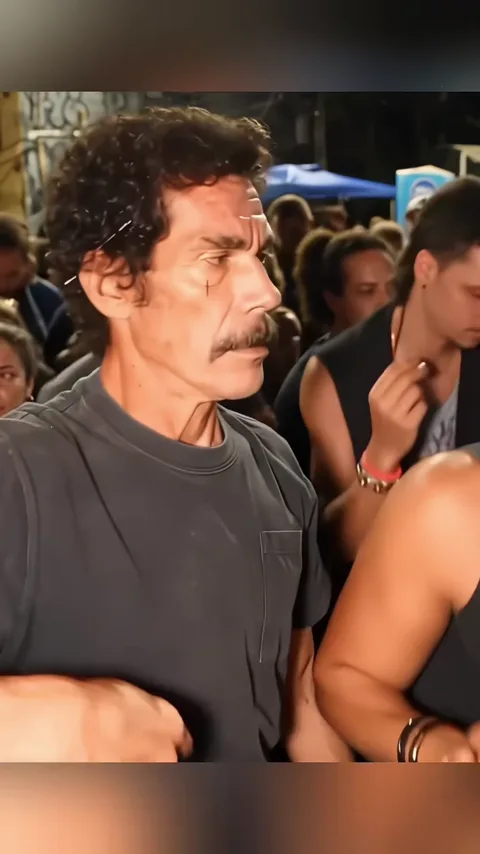
Open the generator and select Browse Files or drop a photo into the upload panel. The preview should show a recognizable face and clear hair silhouette. Avoid photos where the face is turned far away, covered by a mask or sunglasses, or compressed into a tiny area of the frame.
If the photo is too bright, the face can lose detail. If it is too dark, the model has less information for the replacement lead. Neutral indoor lighting or soft daylight is usually more useful than a dramatic colored light.
Step 2: Choose Aspect Ratio & Video Quality
Select your aspect ratio and resolution based on where you plan to share the finished video:
| Duration & Resolution | Best Use | Credits |
|---|---|---|
| 5 Seconds (480P SD) | Fast preview, quick meme reaction clips | 10 Credits |
| 15 Seconds (480P SD) | Full choreography with fast rendering | 15 Credits |
| 15 Seconds (720P HD) | Recommended default for TikTok, Reels & Shorts | 30 Credits |
| 15 Seconds (1080P Full HD) | Maximum clarity, crisp facial and hair detail | 60 Credits |
| 9:16 Vertical | TikTok, Instagram Reels, YouTube Shorts | Aspect Ratio |
| 16:9 Landscape | Widescreen screens and YouTube presentations | Aspect Ratio |
| 1:1 Square | Square Instagram feed posts and previews | Aspect Ratio |
Independent Resolution and Aspect Ratio
Step 3: Generate Your AI Dance
Confirm your photo consent and click Generate Video. The system submits your generation task to the GPU queue.
You can generate up to 3 videos simultaneously. Once you submit a task, the upload area immediately re-enables so you can upload a second or third photo without waiting for the first to complete.
Generation time varies. You can safely leave the page; you can view and download them in My Creations once they are ready and while the files remain available.
Step 4: Preview and Download
When generation completes, preview your finished video in the player. Check the face likeness, body movements, and authentic street crowd surrounding the dancer.
Click Download MP4 to save the video file directly to your computer or mobile device. Use Create Another or upload a new photo to produce additional videos.
Tips for Better Face and Body Consistency
Use one subject
A single adult face gives the model a clear identity target. Group photos create conflicting information.
Keep facial detail visible
Avoid masks, sunglasses, extreme shadows, and beauty filters that erase skin structure.
Preserve hair shape
Hair is one of the strongest identity cues during full-body movement and turns.
Prefer a half-body portrait
Shoulders and upper-body proportions help the lead dancer remain coherent in the street dance scene.
Inspect hands and profile frames
These are common drift points in generated dance video, especially when the lead is partly turned.
Choose an appropriate quality
Higher resolution preserves sharper detail, but a low-quality source photo will not become clearer merely by selecting 1080P.
Common Problems and How to Fix Them
The image will not upload
Confirm the file format is JPG, PNG, or WebP and the file size is under 15 MB. Re-exporting an image from a messaging app can help when the filename and file format do not match.
The face changes during the turn
Use a clearer, front-facing portrait with even lighting. Neutral facial expressions produce the most consistent turns.
Insufficient credits for generation
Generating requires 10 credits (5s 480P), 15 credits (15s 480P), 30 credits (15s 720P), or 60 credits (15s 1080P). Choose a lower resolution or top up with one-time credit packs on the pricing page.
Charme Dance AI FAQ
Make Your Charme Dance Video
Upload one photo and generate your viral dance video in minutes.